The 2-minute guide
How to use PicMerchant
Every tool in three steps, with a picture of where to tap. Read the first card, then jump to the tool you need.
Start here
How every tool works
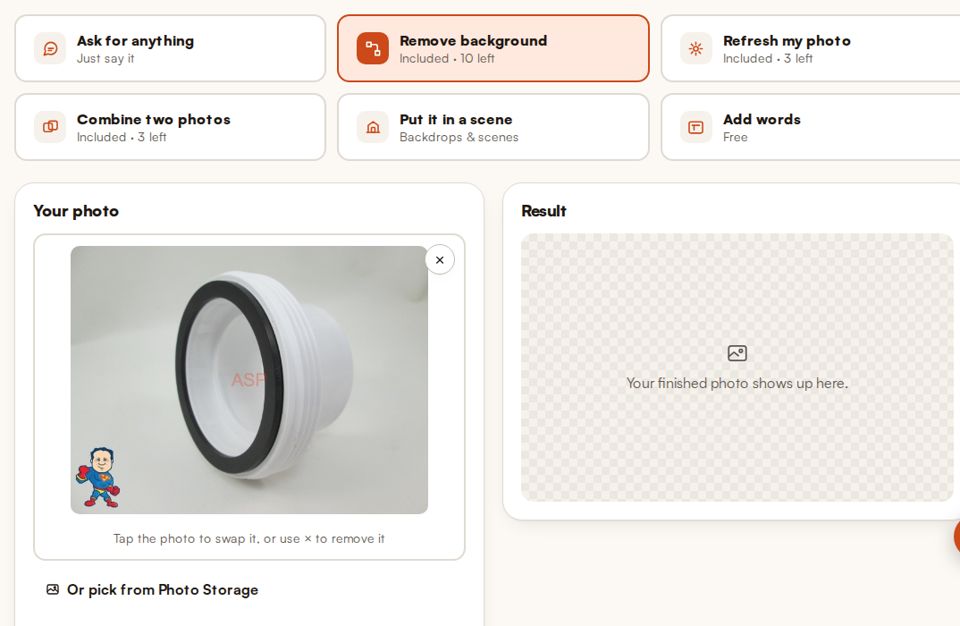
Every photo tool works the same three steps, so once you know one, you know them all.
- Tap a tool button at the top of the Editor.
- Drop in a photo, pick one from your phone, or tap Or pick from Photo Storage. iPhone photos work.
- Press the big orange button. A few seconds later your result shows up on the right.
Paid edits show a watermarked preview first. If it isn’t right, press Try again — free (up to 5 times) or Don’t charge me for this. Press Download to keep it.
Tool 1
Ask for anything
Not sure which tool you need? Just say what you want.
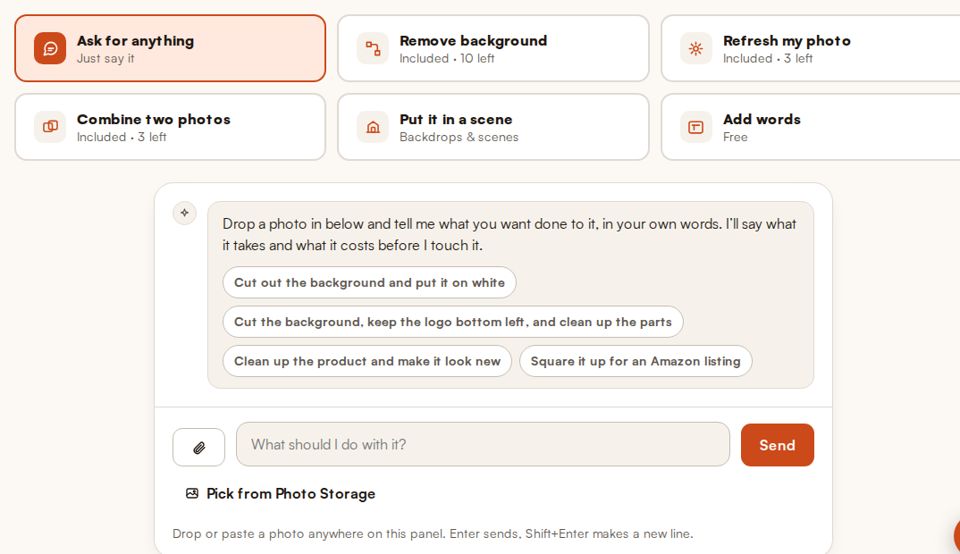
- Tap Ask for anything.
- Add your photo with the paperclip, then type what you want, like “white background and add 50% off”. Or tap one of the ready-made ideas.
- It tells you what it will do and what it costs before it touches anything. Say yes and it does it.
Tool 2
Remove the background
Put your product on pure white or a see-through background. This is what Amazon, eBay and Walmart want for the main photo.
- Tap Remove background.
- Drop in one photo, or several at once to do a whole batch.
- Press Remove background. If an edge isn’t perfect, press Fix the cutout and tap or paint over the spot to fix it by hand.
Tip
Take photos that cut out cleanly
Your phone is all you need. A good cutout starts with the photo, and the most important part is the background colour.
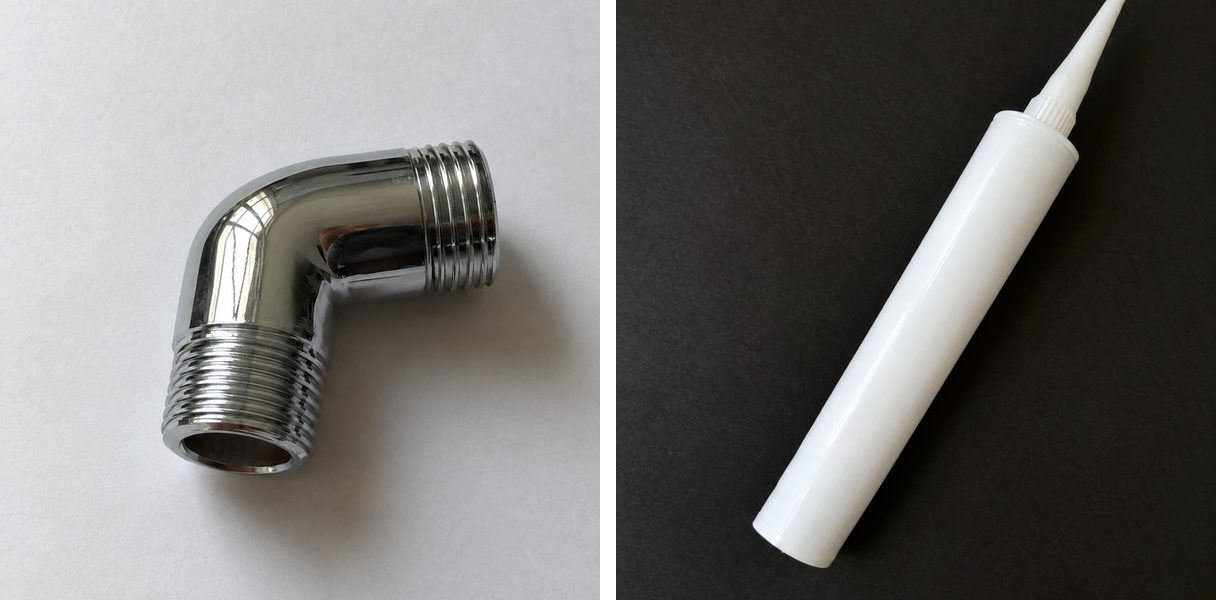
- Pick the opposite colour. Silver, chrome, black or dark parts go on white poster board. White or light parts, like a white tube of silicone or a white seal, go on black or bright green. A kit with light and dark pieces? Shoot them separately, each on its opposite colour.
- Clear the space. Nothing else touching the product. Use soft, even light near a window, no flash, and fill most of the photo with the product.
- Get it to PicMerchant. Drag the photos from your computer into the Editor, or open picmerchant.com on your phone and upload them straight from your photos.
Still not cutting right? Press Fix the cutout. Use your mouse to paint green over what to keep and red over what to remove. Press Tab to switch between green and red. Hand fixes are free.
Tool 3
Refresh an old photo
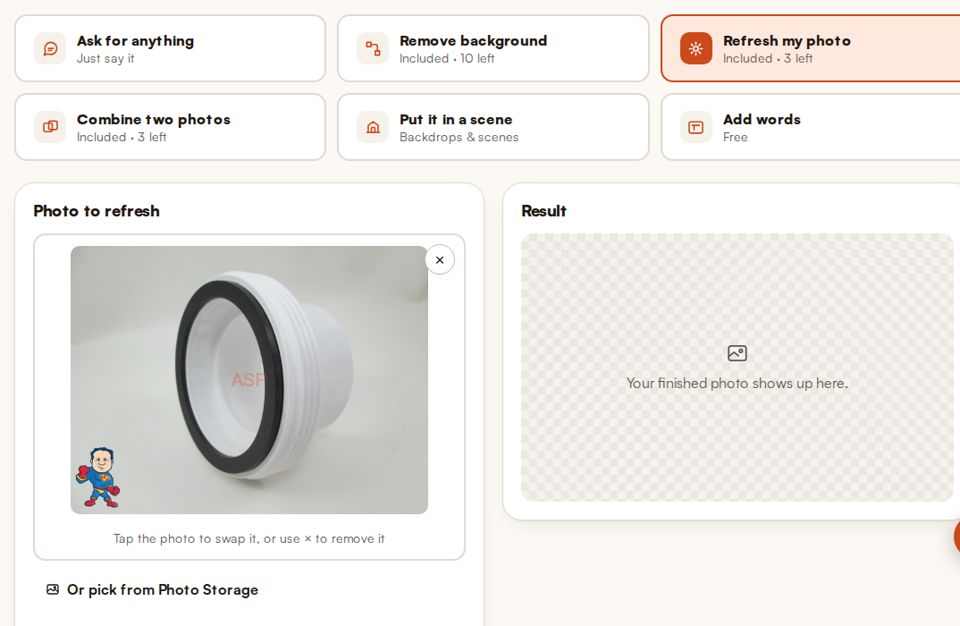
Take an old logo, price, sticker or watermark off a photo and brighten it up, so you can reuse it instead of taking it again.
- Tap Refresh my photo.
- Drop in the photo, then say what to change, or tap one of the ready-made phrases.
- Press Refresh photo.
Tool 4
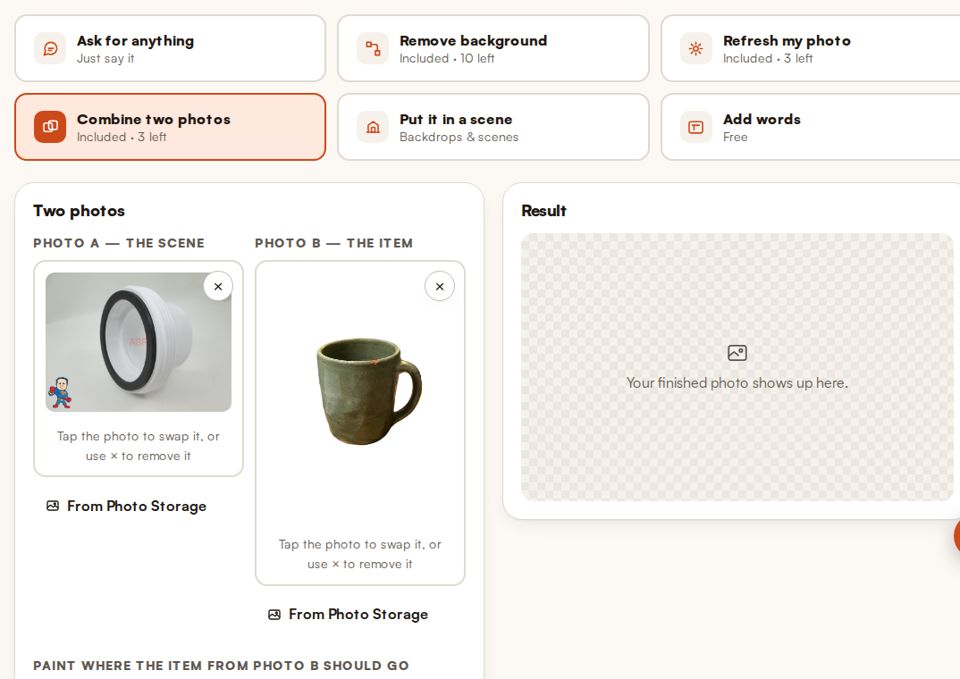
Combine two photos
Put the item from one photo into another. Good for bundles, sets, and showing what comes in the box.
- Tap Combine two photos.
- Photo A is the scene. Photo B is the item you want to put into it.
- Paint where the item should go, then press Combine photos.
Tool 5
Put it in a scene
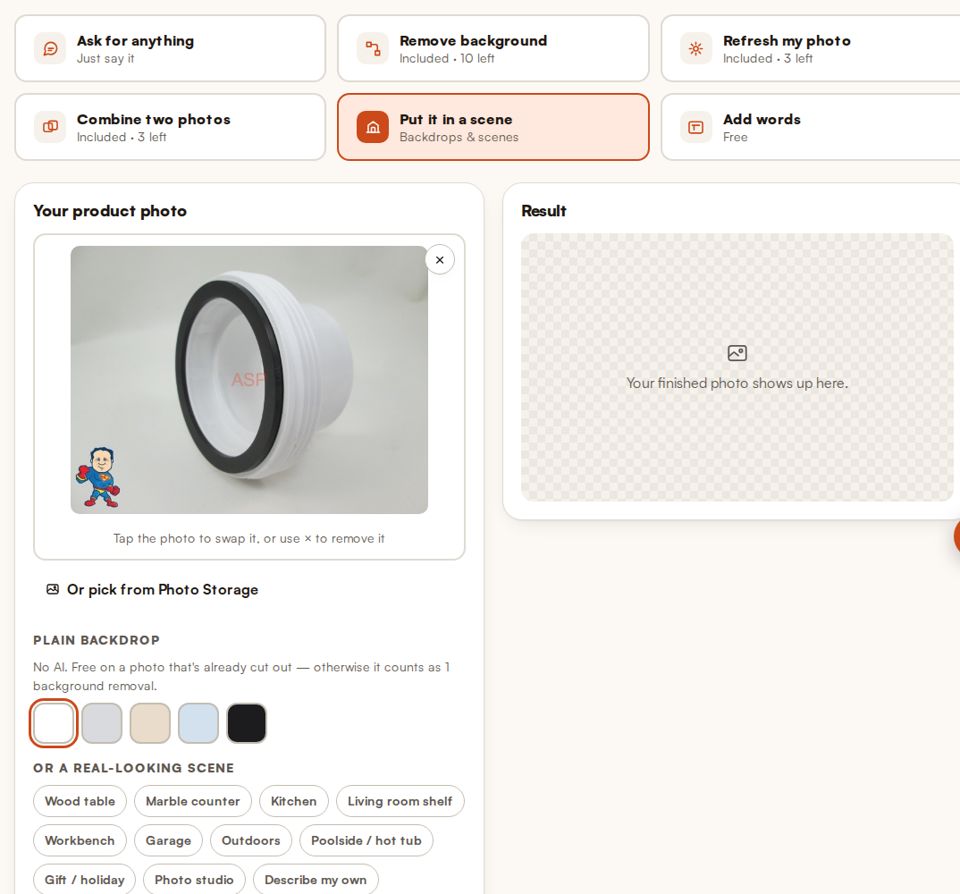
Show your real product somewhere real: a kitchen counter, a workbench, a patio, poolside. The product itself is never redrawn.
- Tap Put it in a scene and drop in your product photo.
- Pick a plain backdrop colour, or one of the scenes. Or tap Describe my own and type it.
- Press the orange button. Don’t like it? Press Try another look.
Tool 6
Add words
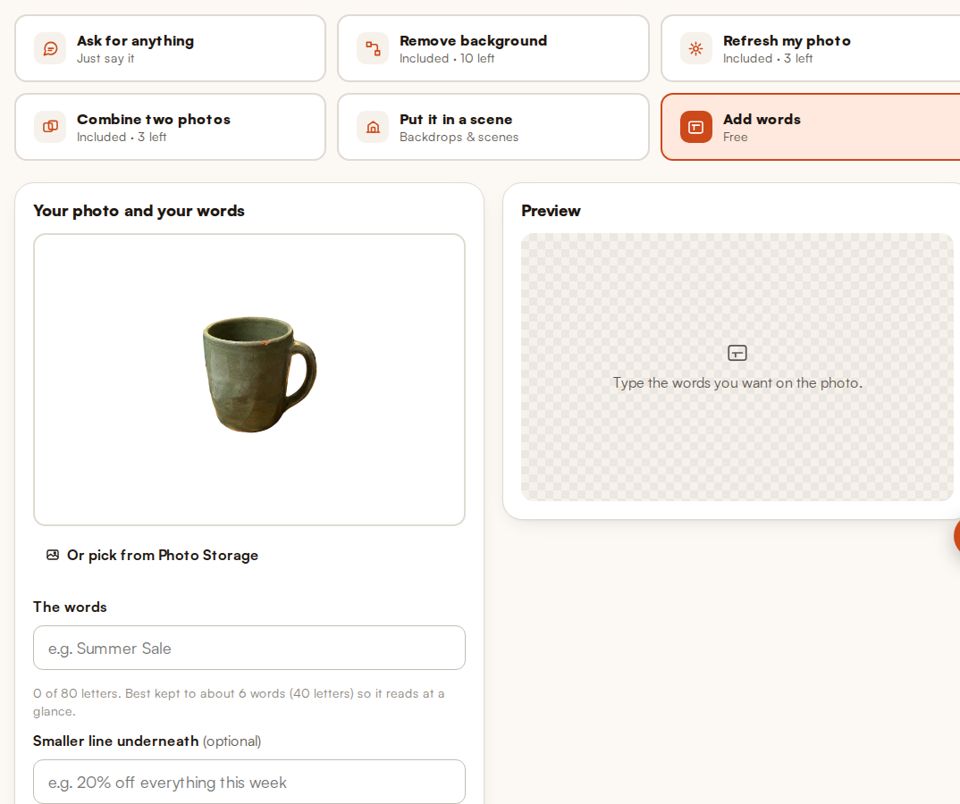
Put a sale banner, a price or a label on a photo, in clean fonts that are easy to read.
- Tap Add words and drop in the photo.
- Type your words, plus a smaller line underneath if you like. Keep it short so it reads at a glance.
- Pick one of the eight looks, then press Save this photo.
Tool 7
Make a product video
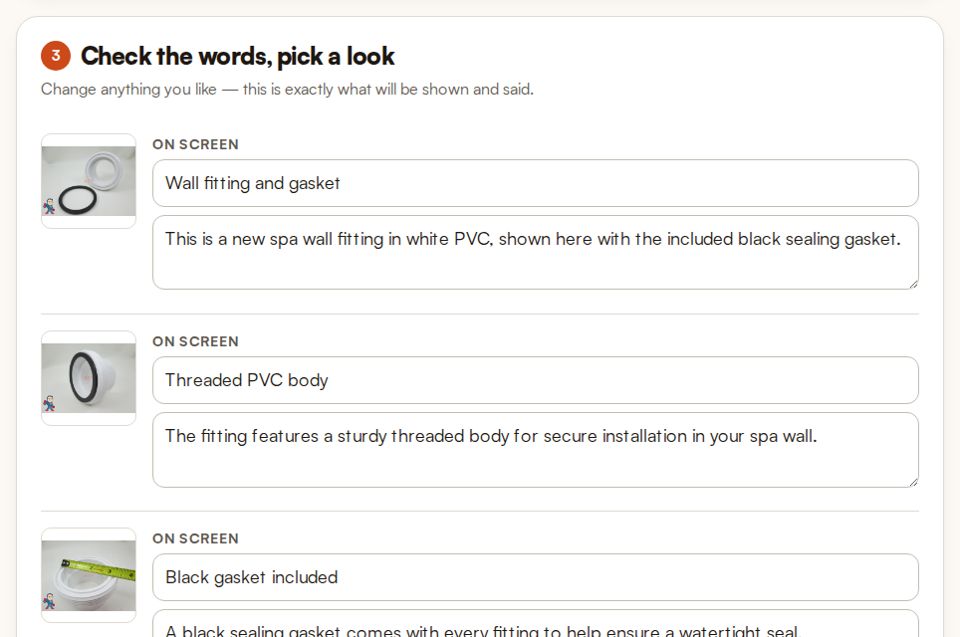
Turn a few photos into a short video with captions and a voice, ready for your listing, website, Reels, TikTok or YouTube.
- Open Videos at the top and add up to 8 photos of the product.
- Say what it is and a few facts about it, then press Write my script. It’s free.
- Check the words and change anything you want, pick a voice and a shape, then press Make my video. Press Keep this video to download it.
Tool 8
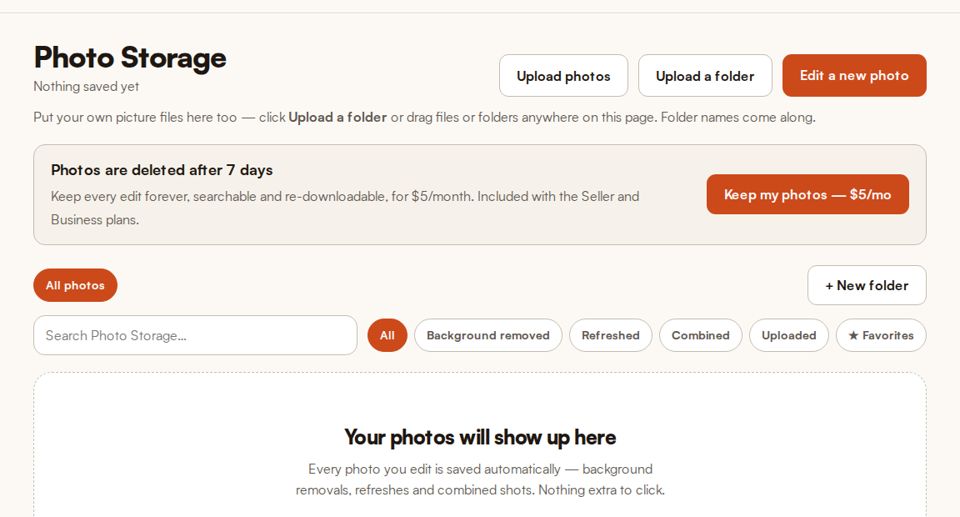
Photo Storage
Everything you make is saved here automatically. You can also upload the photos you already have.
- Open Photo Storage at the top.
- Press Upload photos or Upload a folder. Folder names come along.
- Search, sort into folders, download, or press Edit on any photo to open it in a tool.
Tool 9
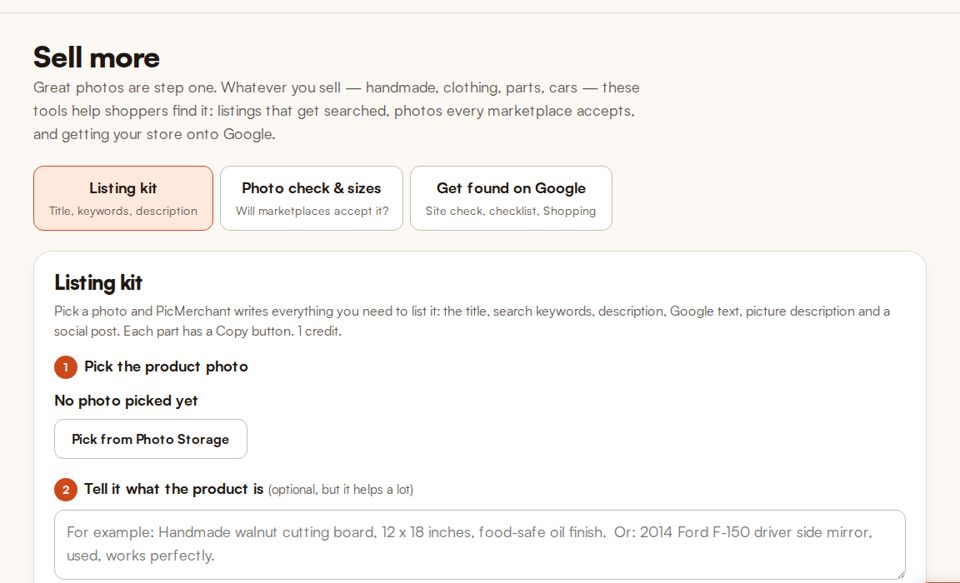
Write the listing
Get the title, search keywords, description, Google text and a social post for a product, each with a Copy button.
- Open Sell more and stay on Listing kit.
- Press Pick from Photo Storage and choose the product photo. Add a few words about it if you like.
- Press Write my listing, then copy each part into your marketplace.
Tool 10
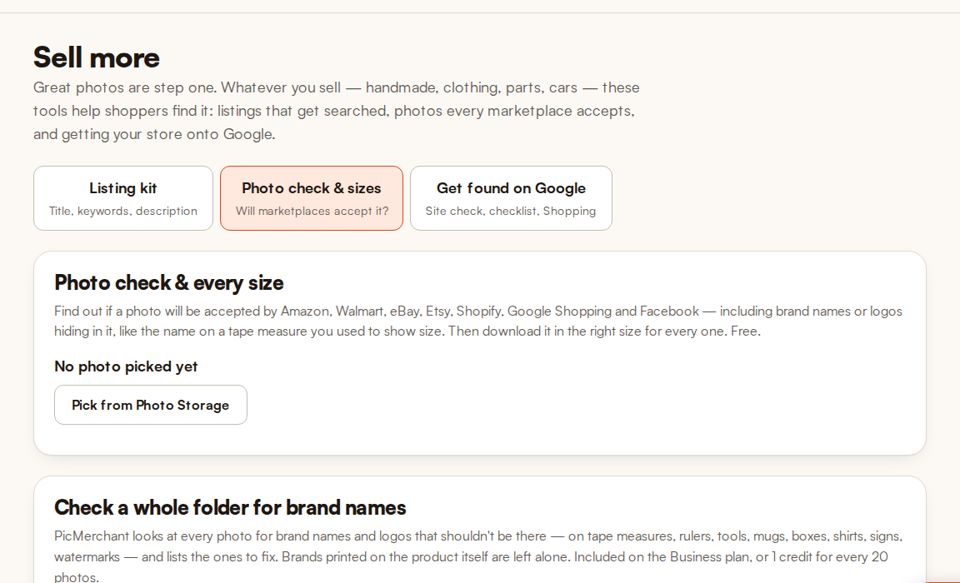
Check a photo for every marketplace
Find out whether Amazon, eBay, Etsy, Walmart, Shopify, Google and Facebook will accept a photo, and download it in the right size for each.
- Open Sell more and tap Photo check & sizes.
- Press Pick from Photo Storage and choose a photo.
- Read what passes and what to fix, then download the size you need.
Stuck on something?
Tap the orange Help button on any page and ask in your own words. You can type or talk. New to selling? Start here walks you through your first product step by step.